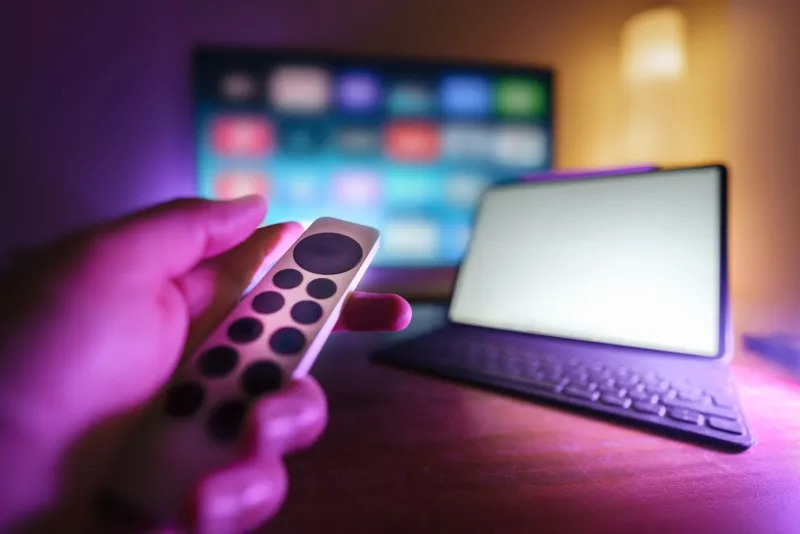
Five Buttons, One Ritual: Setting Up Your Remote for Fewer Late Nights

Photo: Secretaría de Cultura de la Ciudad de México from México, CC BY-SA 2.0, via Wikimedia Commons
Somewhere in your living room sits a piece of hardware with more processing power than the guidance computer that landed Apollo 11, and you use four buttons on it: power, volume up, volume down, and whatever you mash when the Wi-Fi hiccups.
I counted 47 buttons on my own remote last week. Two launch apps I have never opened. One says “LIVE TV” in a font that suggests even the manufacturer had doubts. A full dozen exist because someone in a conference room in 2011 believed in them.
We spend a lot of time here talking about app settings, subscription audits, and household viewing rules. All useful. But the most direct piece of streaming control you own is the plastic brick on the coffee table, and most of us never touch it on purpose. So here's a five-button setup that turns the remote into an on/off ritual instead of a browsing accelerator.
The Sleep Timer Is Not an Admission of Defeat
People treat the sleep timer like a confession. It isn't. It's a pre-commitment device — the same logic as putting your running shoes by the door.
Every major platform buries it, but it's there. Roku hides one under Settings > System > Time > Sleep Timer. Fire TV will set one from the settings menu or by voice (“set a sleep timer for 40 minutes”). Apple TV keeps it in Settings > General. Most cable boxes, including Comcast's X1, offer one too, and plenty of Samsung and LG sets let you surface it in a quick menu.
The move is to set it before you press play, not after you've already nodded off. Forty-five minutes is a solid default: long enough for one episode of most dramas, short enough that the TV goes dark before your judgment does.
The Input Button Is the Quietest Off Switch You Own
Here's a trick that sounds ridiculous until you try it. When you're done watching, don't back out to the home screen. Switch to an input where nothing is happening — the empty HDMI 3, the antenna with no signal, the game console that's asleep.
Why does that work? Because backing out to a home screen leaves you one click away from fifteen thumbnails engineered to look interesting at 11:40 p.m. An empty input leaves you one click away from a black screen. That small dose of friction is the whole game. Autoplay can't reach you on a dead input.
Bonus: the input key is also the fastest way to declare that the TV is now doing something else. Console input for a game, HDMI 2 for the laptop, done. You've changed the activity, not just the channel.
The App Buttons Work Better in Reverse
Those dedicated Netflix and Prime Video keys are, functionally, advertisements you paid for. But they can be commitment buttons if you use them backwards.
The rule: never press an app button to browse. Press it only after you've already decided what you're watching. Decisions happen in your head, in a notes app, or on a sticky note — not inside a recommendation feed at 10 p.m. with a carousel of “Top 10 in the US” glowing at you.
If your remote has a voice button, put it to work the same way. “Open [show name]” is a decision. “Open Netflix” is an invitation to scroll for twenty minutes and call it a night.
The CC Button Is a Volume Knob for Your Brain
Captions get filed as an accessibility feature for other people. In practice, they're one of the best attention tools you've got.
Turn captions on and drop the volume to about 40 percent. Two things happen. First, you're reading, which occupies the part of your brain that was planning to wander toward your phone. Second, you can finally hear the dialogue over the sound mix — a real problem with modern prestige TV, where every whispered line is buried under a synth drone.
If you're not actually reading the captions, that's information: you weren't watching. Noticing it is the entire point. And if the show has subtitles anyway, the same logic holds — the subtitle menu is a control, not a chore. On most remotes it's a dedicated key; on others, hold select or dig into the playback menu. Two seconds either way.
The Power Button Is a Feature, Not a Failure
The last button does the obvious thing, and it's the one people skip. Falling asleep with the TV on isn't neutral. You wake up somewhere in season three, autoplay has burned through four episodes, and your brain files the whole night as noise.
Press the button. Stand up to do it if you can, since a remote is an invitation to stay put. It takes less than a second, and it's the cleanest line between “I watched a thing” and “the TV watched me.”
Building the Five-Minute Ritual
You don't need a smart home setup or a spreadsheet. You need three small defaults:
- Set a 45-minute sleep timer at the start of every session, before the first episode.
- Choose your show from the home screen or by voice, never from inside an app's recommendation row.
- End the night by switching to an empty input, then hitting power.
That's it. Five buttons — timer, input, app-or-voice, captions, power — doing the job a dozen settings menus keep promising. The other 42 can keep gathering dust. They've earned it.